Oops!

error message

Error Screen?

Don't worry, you didn't break anything :)

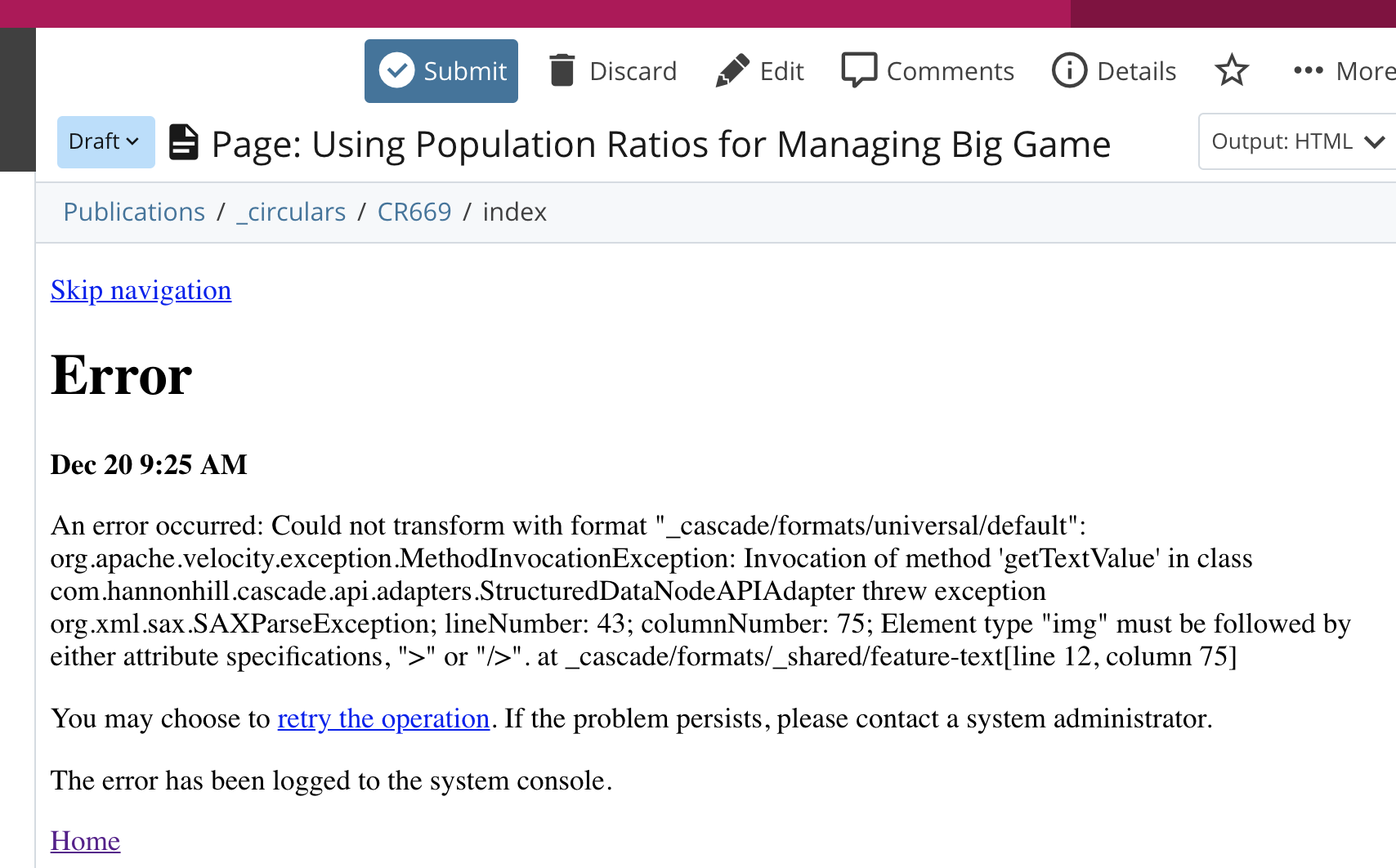
Sometimes, upon submitting your latest change, a screen displaying "Error" will appear.

Although it looks alarming, an error screen is quite common and usually only requires minor adjustments to the content you inputted.

Read possible SOLUTIONS below.

Common Error Screen Causes

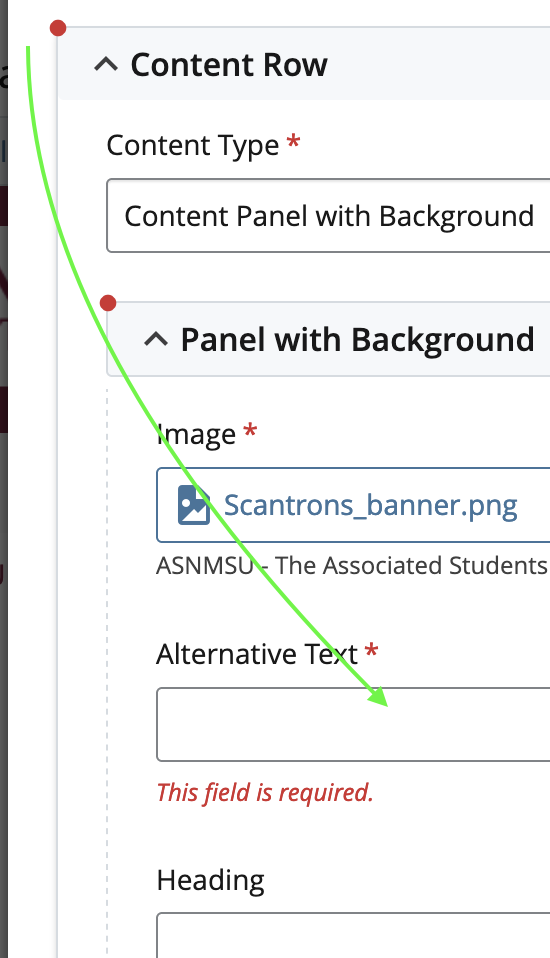
red-dots.pngIn most cases of error a simple field that is required was left blank. This is common particularly in large pages that contain several Content Rows to sift through.

SOLUTION: Enter data on required fields

It is easy to overlook these required fields, but if you follow the red dots to the left of the content row boxes they will help you find those required fields, if any.

The red dots will show you the row and content areas. Then, look for a red asterisk * to see which field needs an input.

When manually inputting your own code , this is the most common error cause.

There is a likely simple syntax error in your last edit. The syntax in the HTML is missing a closing tag, or perhaps there is a program-specific tag that is not compatible. (This can occur when using certain versions of Dreamweaver, for instance.)

Also, note that short codes are exclusive to WordPress and are not compatible outside that environment. ( Examples: [gallery] or [caption] ).

Another possibility is an HTML tag was left open. Look for places where you may have inserted a new HTML tag (such as a <div> ) and failed to properly include its closing tag (a closing </div> ).

SOLUTION: Inspect your manually-inputted code for mistypes in syntax or incompatible shortcodes.
rule-of-3.gif


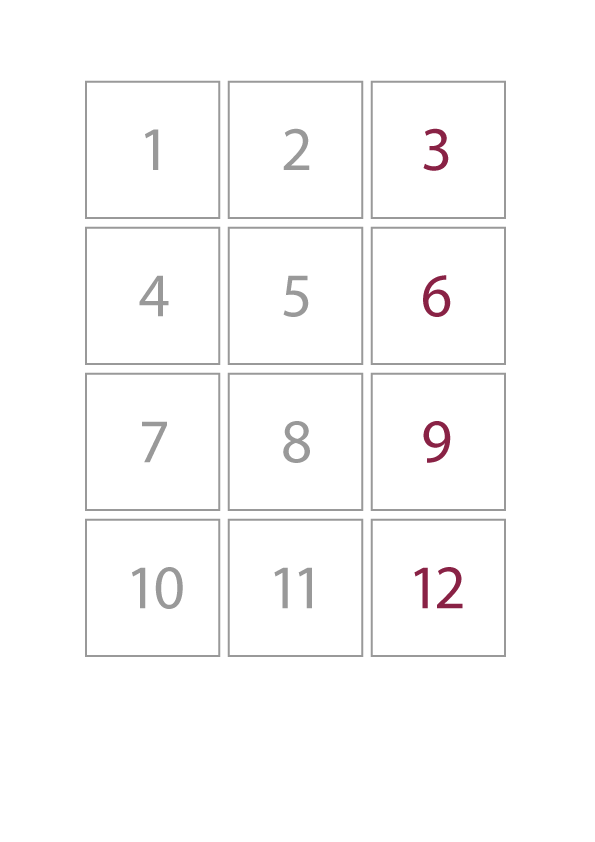
If your page includes a Grid Builder content row, it is possible that 1 or more grid items were left out.

The Grid Builer requires grid items in multiples of 3. Any more or less will result in errors.

SOLUTION: Set the required grid item to a multiple of 3

Please consult the webinar for detailed instructions in using the Grid Builder.

no amps allowedOne known issue in Cascade is it's trouble rendering the ampersand character. The simple solution is to omit the symbol altogether and use the word 'and.'

SOLUTION: Reword or replace with a web character symbol

If you really need to display the symbol, you can replace any stand-alone ampersand  with its official HTML code:

( &amp; )

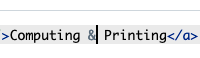
So that a keystroke...

amp1.png

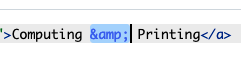
...becomes a charater code.

amp2.png

For more HTML codes for certain symbols , accented letters, etc. consult this page with all the official symbol codes, so you can be sure they will show up on any display.
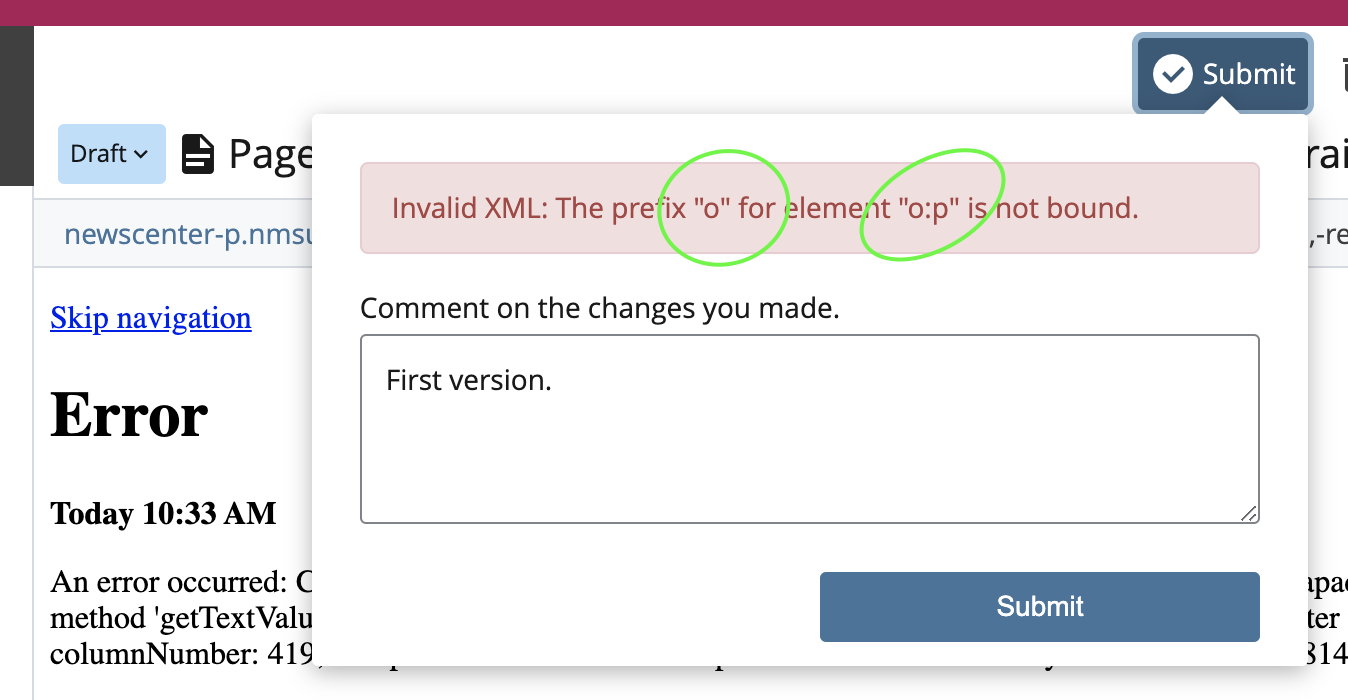
false-code.png

It is possible that your text input method (for example, copying content from another program and pasting it here) is causing the page to read certain things as HTML code.

SOLUTION: Open the Advance editor and remove text that can be interfering with HTML code

In your content area, open the Advanced Editor by clicking the two brackets < > that say Source Code:

adv-editor

Search your inputted content for these <brackets > which are used for HTML code.

Look for out of place characters there, such as colons and square brackets inside the HTML taglines.
Publishing or Display Errors

If you are receiving this message:

cannot-pub
"You cannot publish (or unpublish) this asset..."

it means your site is not yet Live and is not able to publish content for public view.

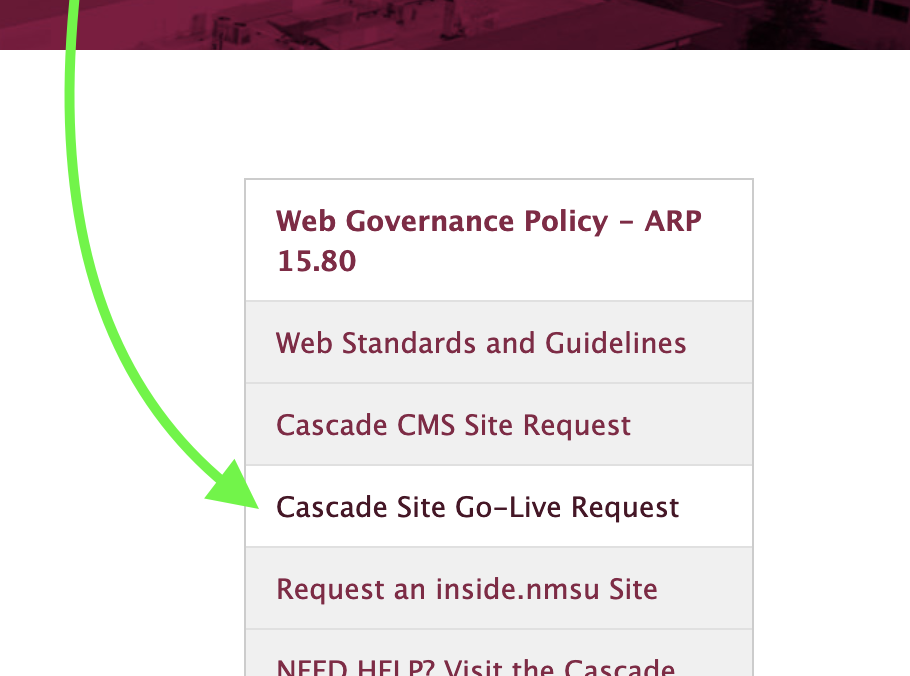
SOLUTION: If you feel your site is ready to "go live", please consult our info page and navigate to File a Go Live Request! We'll begin the procedures to get your site online!

https://nmsu.edu/cascade-migration/

Changes submitted to pages (or other assets) while logged into Cascade are saved, but are only public until you actually Publish those updates. You may be able to verify that your latest edition was saved if other users that are also logged are able to view your latest updates, but only until you either publish that page, or the entire site, will those updates reflect on your live site.

Whether you are the only user making a small change to your home page or there are several users making changes to many assets throughout your site, Cascade must be instructed to publish those new editions whenever you are finished.  It is best practice to publish the entire web site around the end of the work day in order for the most recent changes to reflect live.

SOLUTION: Publish your page, asset*, or entire site.
*Some assets (such as blocks) are not publishable individually. Instead, publish its parent folder or the entire site.

• To simply publish your current page, after saving your draft by clicking submit, click the Publish button to send the asset to the publishing queue. In a few minutes, the new data will be pushed online.

how-to-publish

• To publish your entire website, click Site Contents (which takes you to your Root Directory), and then click the Publish button. Likewise, the site will be sent to the publishing queue, and its data will refresh online depending on the size of all the site files.

sitecont-pub

NOTE: Publishing takes time, and not all web browsers refresh automatically when visiting a website repeatedly. Simply clicking Refresh on your default browser will not always load the freshest data.

👉 For a better reviewing process, use an alternate internet browser that hasn't visited your site in a while, or clear your browser's cache so it will load the most recent data from the internet again.

Similarly to how one needs to publish recent updates as explained above, the navigation bar is an operative part of the website as a whole. This means that the entirety of your website needs to be republished periodically so all of its assets (in this case, the navigation bar) can refresh online.

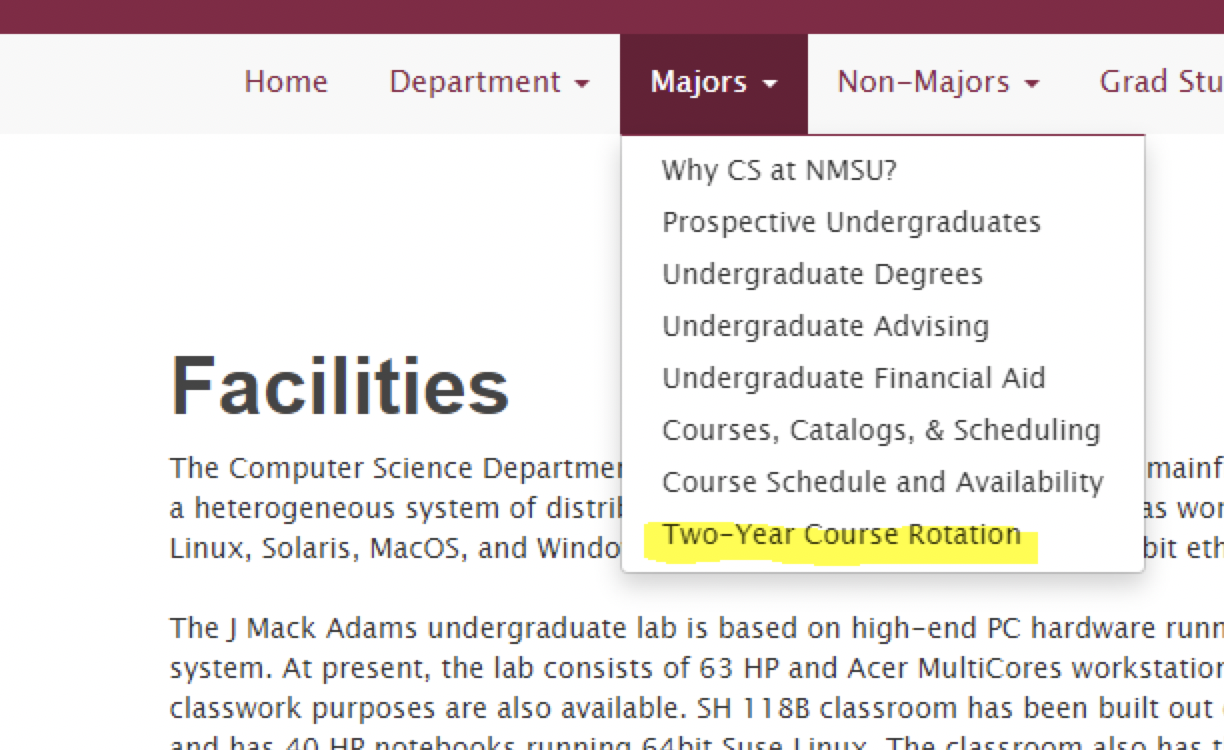
nav-1.png

nav-2.png
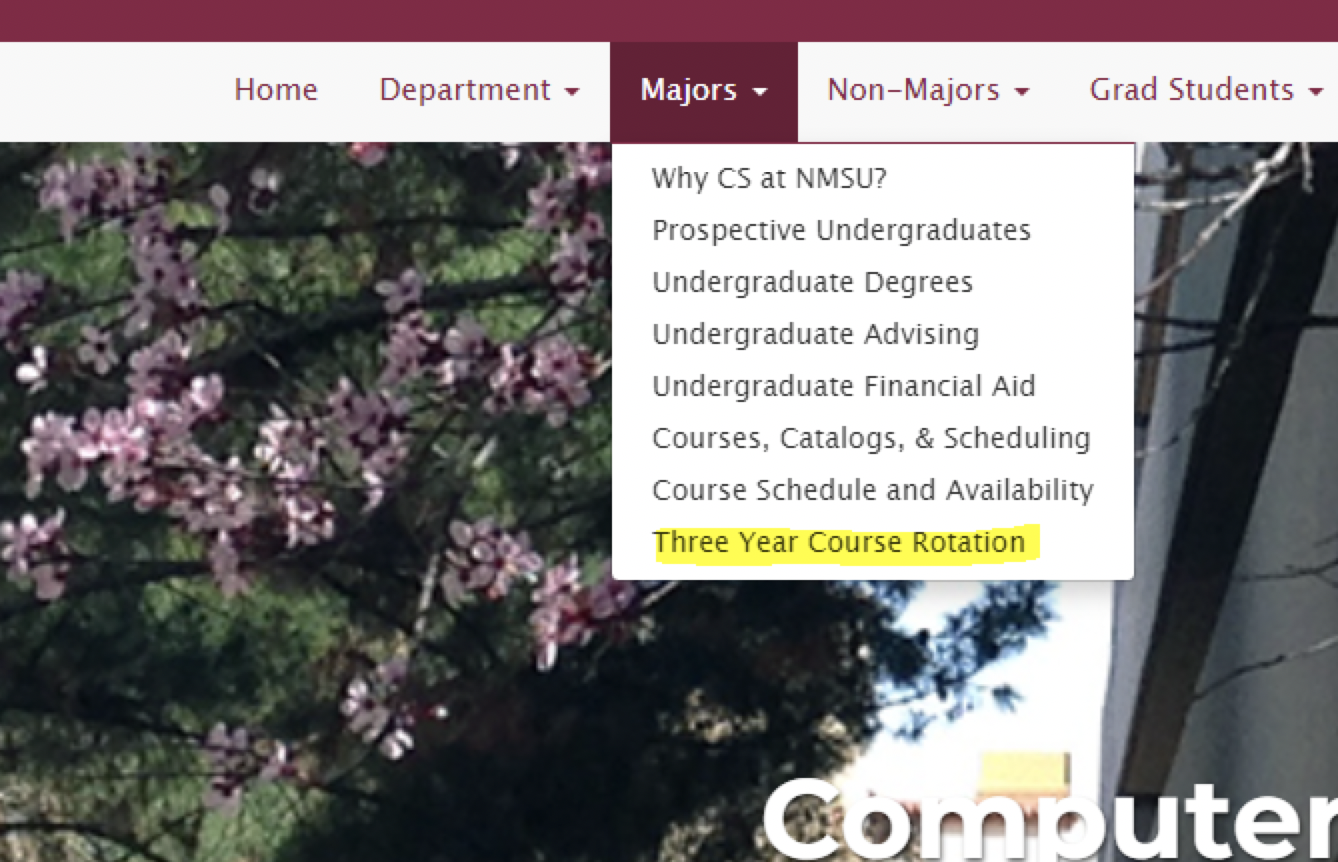
If there is a mismatch on your navigation, chances are one or more pages " haven't gotten the memo" of recent changes yet
SOLUTION: Simply follow the steps in the topic above to republish your entire site.

If your site does NOT use the automatic top navigation setting, then the links must be manually updated.

Here is how to verify if your navigation is Automatic:

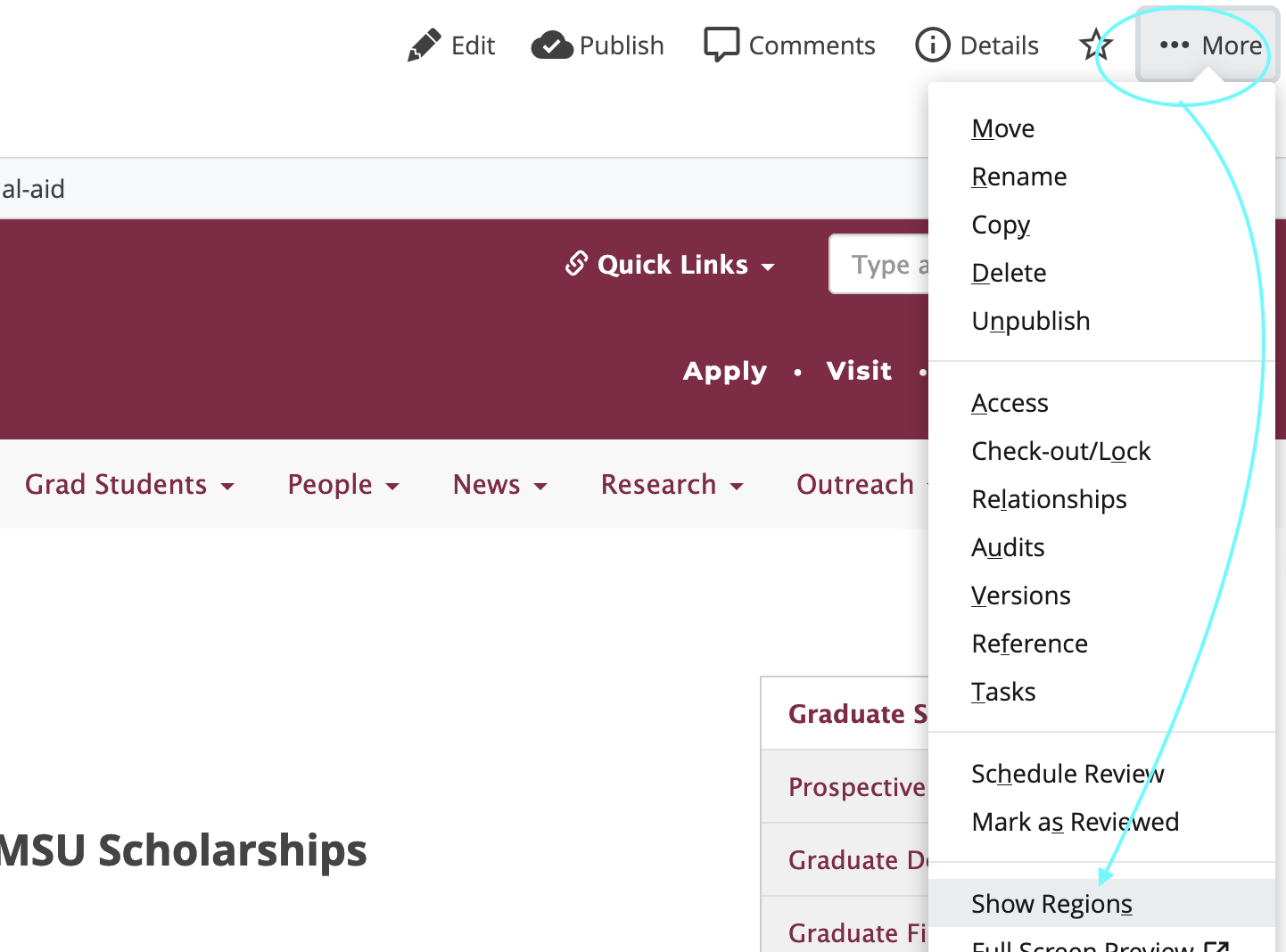
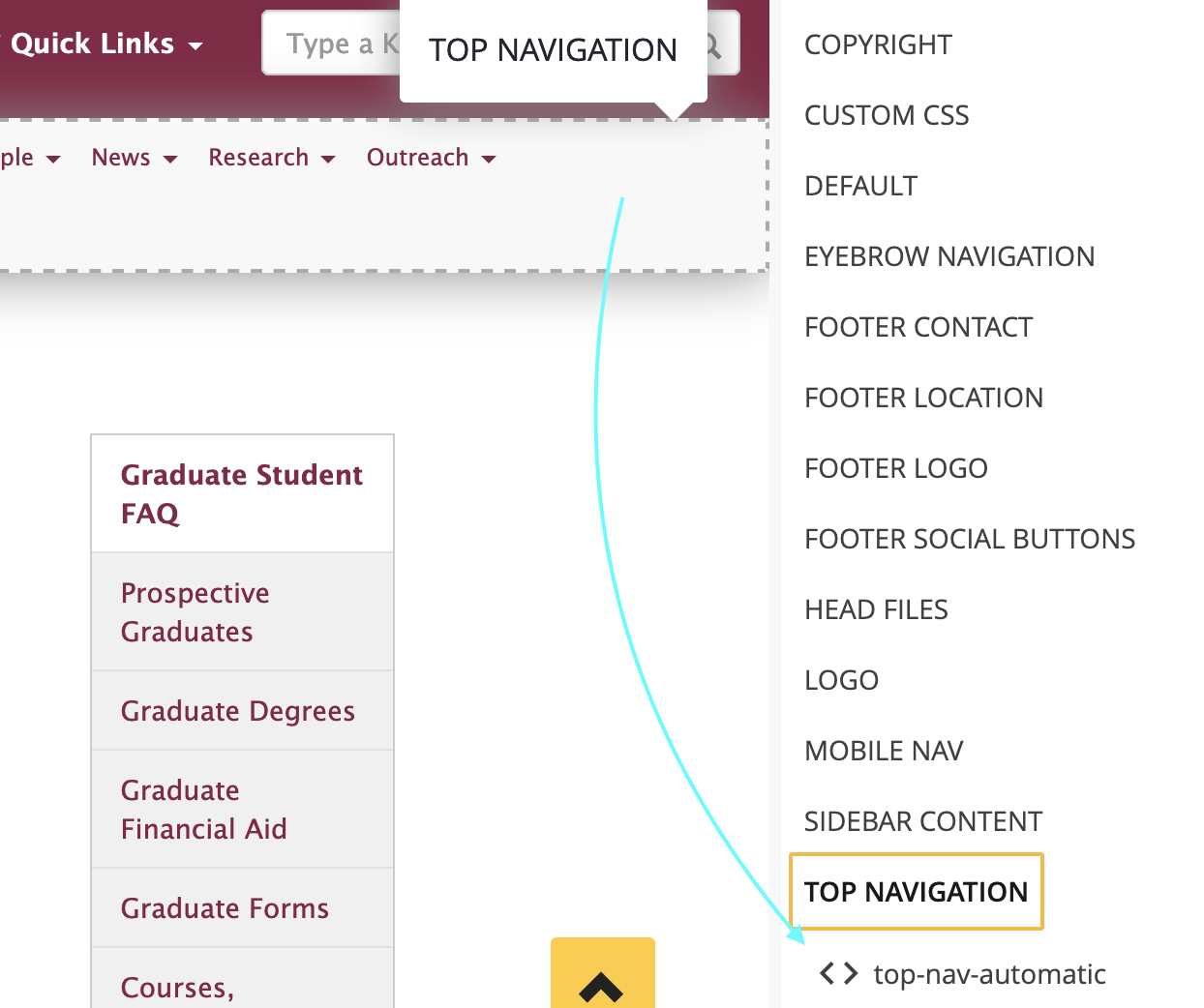
• Click the More on the top right area and scroll down to "Show Regions"

show-topnav.png

• Verify that the region called TOP NAVIGATION has a format called < > top-nav-automatic

show-regions.png

• If it simply says < > top-nav , then your menu must be editted manually before replublishing your site.

SOLUTION: Manually edit the code of the < > top-nav before republishing your site.

👉 How to manually update your nav menu: The Top Nav Menu 

For broken links occurring in your Top Navigation bar, consult our webinars below:

The Top Nav Menu (if your navigation is custom)
Put the Menu on Auto! (if your navigation is automatic)

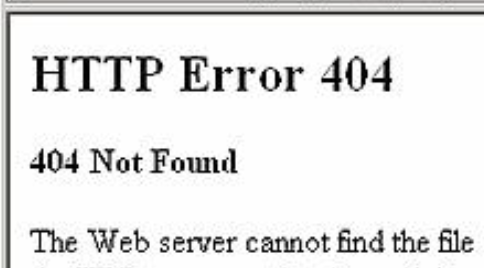
404-error

404 Page Not Found

This means you will have to check the hyperlink in the page the broken links appear in. Likely, the source of the hyperlink has changed its webpage or document and you must insert an updated link.

Consult the Editing A Web Page tutorial on inserting links and for proper link formatting.

*To learn more about how naming conventions work. See this helpful tutorial: Names , Titles, and Displays (the distinctions)

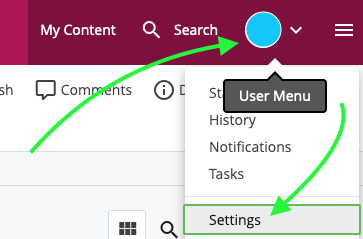
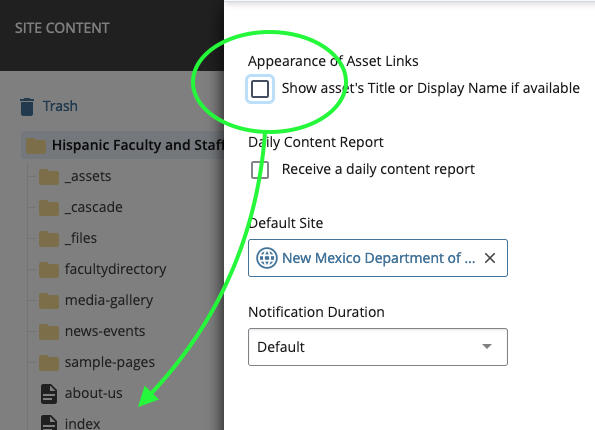
Each user has the option to display the names of the files differently. At the top right corner, access your User Menu, then Settings
View-Settings


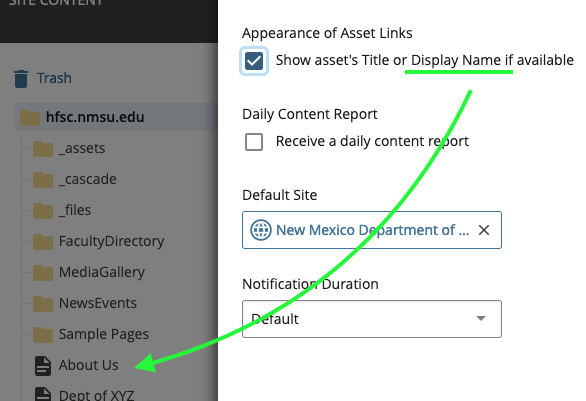
You can choose to view the site assets by their Display or Title names:
Display_on


OR you can uncheck the box to view their actual file names.
Display_off
👉 This is recommended to web content managers, as it is a convenient way to keep track of a files' proper URL address. Or, for example, if you need to verify if your directories have an index (a "landing" page).

Pages from your site that have been published on the web were also at one point “crawled” by search engines. This means their data will remain on the web until your site is crawled again.

Various search engines perform these crawls at their own time schedules and using their own methods to sort the results. The MARCOM web team is unfortunately not privy to those details nor able to edit those results 😔 It is up to your web content efforts to use the best SEO (search engine optimization) practices over time to get the best results in Google, etc. Keep content updated and relevant to search terms.

SOLUTION: Publish updated material. In time, web crawls will update their results for any given search engine. Research SEO best practices to boost your ratings 😃!

Reverting to a Previous Version

There is an option to revert a page (or any asset) to a previously saved draft, or version

If you are currently editing your page, go to the right corner and click ...More. Then scroll down to Versions

versions-1 versions-2 If you are currently in the File Manager, you can access a file's Versions by right-clicking on the file, clicking More (if the window is too short), and then scrolling down to Versions.

From there, you can choose which version of the file you would like to revert to, by the date it was saved as a draft. It is even possible to preview those drafts before reverting to them!

Use Caution When Renaming Files!

Use Caution When Renaming

Do NOT Rename files Instead, add Metadata

🚨 IMPORTANT: It is strongly recommended NOT to change the name of your files (and folders) after being published.

This is especially the case for folders and pages, as they are used in the paths of web addreses, and thus essential in keeping URLs consistent and crucial files accessible. Files' names are, in fact, part of the URL (web address) used to lead users to them.

INSTEAD, change the file's Title and/or Display Name metadata!

Read More