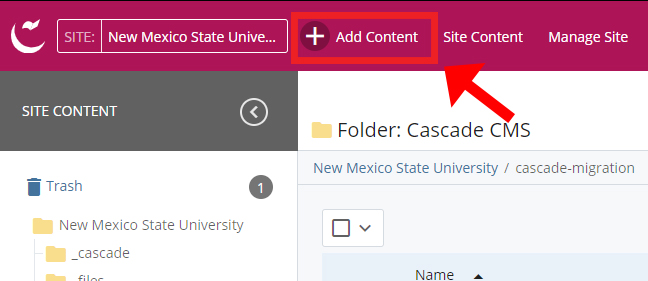
After navigating to the correct directory in your site, notice the (+) Add Contents option in the upper left.
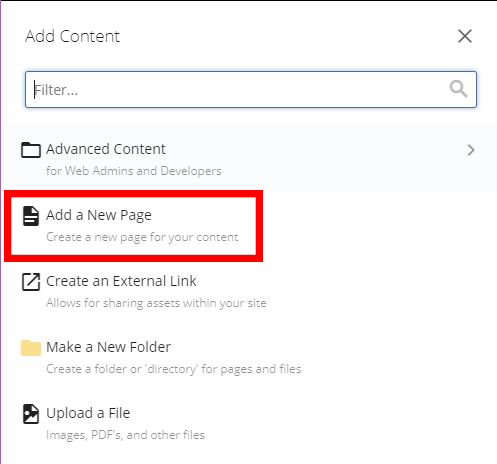
A pop up will appear showcasing all sorts of content you can add to the site. We will create a new page.
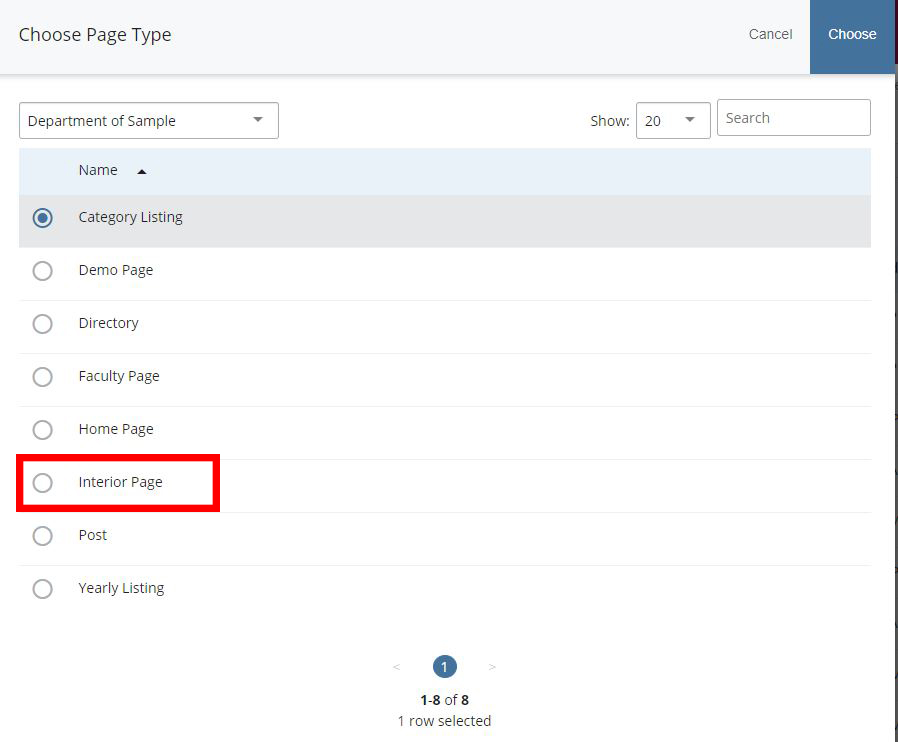
Fill in the information for the page in regards to the Page Name, Display Name (optional), and Title*.
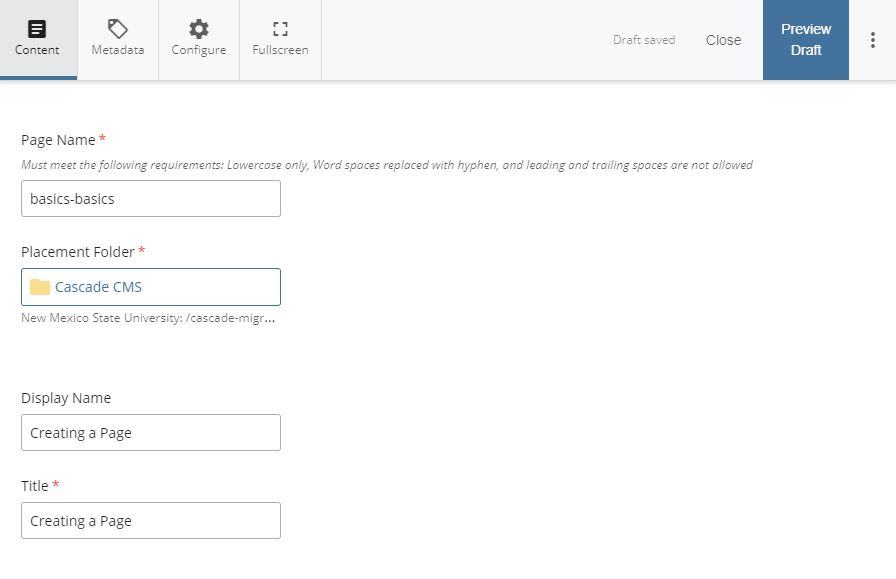
Give your page a short name relevant to the contents of the page, for quick and easy recognition. A page name can only include lowercase letters and dashes. This name will also appear in the URL (web address) when it is published.
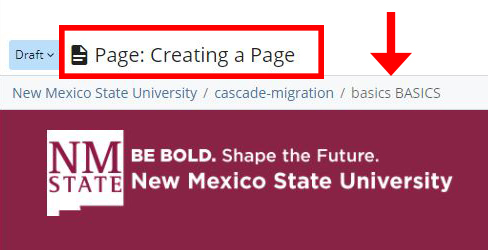
Titles are an optional, and appears in the sitemap, naviagations, and breadcrumb trails which link back to the index page. They are usually, but not necessarily, the same as the Display Names.

Titles refer to what will be displayed at title area, the top of the browser, when on your webpage.
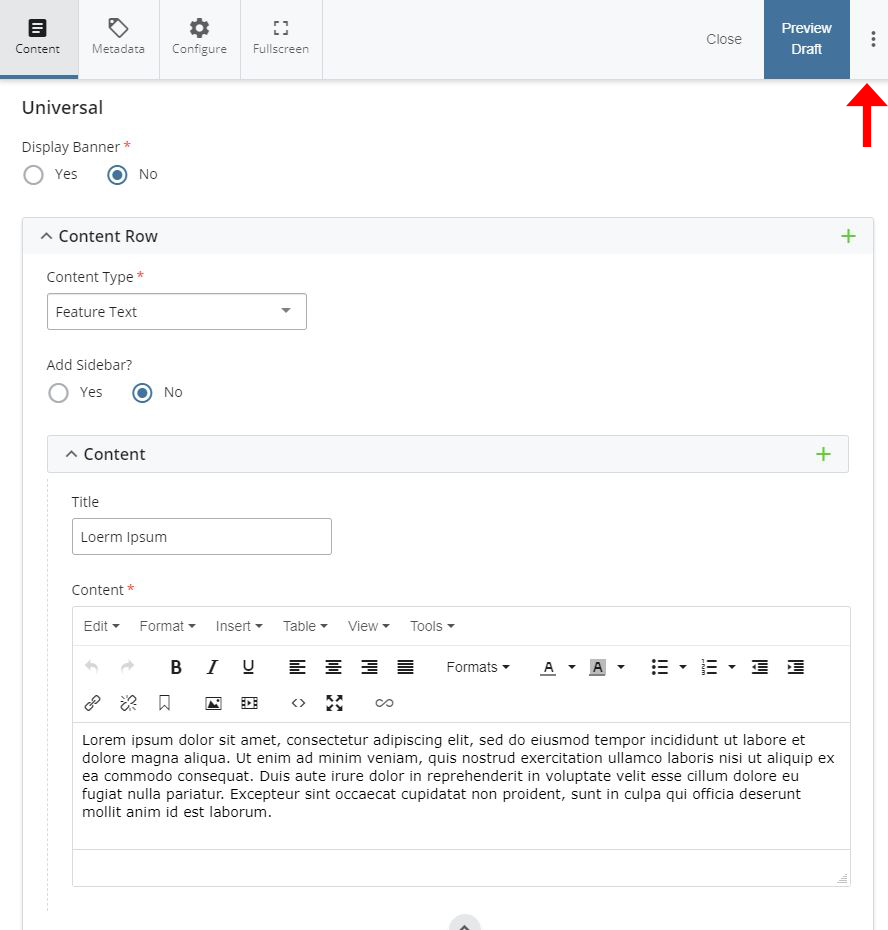
Scroll down to the Universal portion of the content page. Here you can add text to the page as well as banner images. Expand the Content Row and select Feature Text. Add desired content.
Once done adding any additional content, hit the preview button in the upper right to preview the page.
If happy with the outcome, select the three dots to the right and click submit.
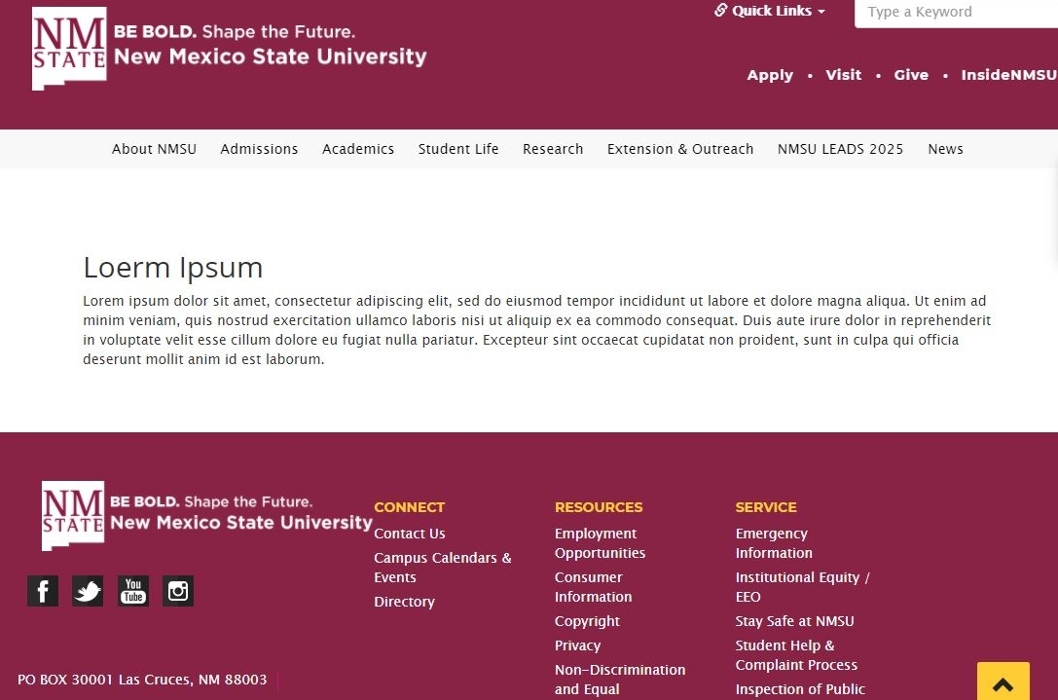
Hooray! You've created your first page!